Banner
Showing posts with label Video Converter. Show all posts

Sunday, February 17, 2013

How to Play PowerPoint on Sony Xperia Z Smartphone

Play PowerPoint on Sony Xperia Z
How to view PowerPoint on Xperia Z?
Good to be back! Just return from a 10-day vacation and continue to write something useful for everyone.

Today we'll focus on Sony's Xperia Z, a new smartphone which was introduced at CES 2013 last month. This gadget comes up with a 5-inch 1080p screen, a quad-core S4 Pro processor and a 13 MP rear camera. Besides, it brought more surprises to audience: 
  • Mobile BRAVIA Engine 2, a technology to make video content more bright and colorful.
  • Battery STAMINA Mode. When this mode is turned on, standby time can be extended up to 3 times longer than normal mode.
  • Dust and water resistance. The Xperia Z can survive in clean water for up to 30 minutes without any problems.
The Sony Xperia Z will hit European stores first on Feb 21. Thought the release day in the US is still unknown, we could image that the device is an edge tool for watching HD movies and playing HD games. Then how about playing PowerPoint on Sony Xperia Z? Android users may choose some Office apps from Google Play, such as Documents To Go, Kingsoft Office and so on. These apps can help users view PPT files on their Android devices. However, most of them may lead to the losses of animated effects. There are some leaked rumors on Microsoft Office for Android, but we may still have to wait for a long time before it's available.

Here I'll show you another way to watch PPT on Xperia Z. Since it's wonderful for playing HD videos on the phone, why not convert the PowerPoint presentations to video format and put them on it? To do the trick we need a tool --- the free download PowerPoint to Xperia Z video converter.

The conversion process is shown below:

Step 1 Download, install and launch PPT to Xperia Z video converter.

Step 2 Click "Add" button to import PowerPoint files to the converter. Batch importing is also supported.
Import PowerPoint files
Step 3 Click "Profile" drop-down menu and choose a suitable output video format. Since the Xperia Z can play HD videos, here we select "HD H.264 MPEG-4 AVC Video (*.mp4)".
Output format setting
Output video format setting
Step 4 To make sure the exported video can be played perfectly on Xperia Z, click "Settings" button and enter "Profile" panel. The phone's resolution is 1920 * 1080 pixels, we set the video size as “1920  * 1080” and audio codec as “AAC“.
Advanced setting
Advanced setting
Step 5 Click the big and black "Start" button to start conversion. Depends on file size and video format, it usually takes a couple of minutes to convert a PowerPoint file to video. When the conversion is finished, just connect the Xperia Z to computer with USB cable and transfer the video. Enjoy watching PowerPoint on Sony Xperia Z!


Related articles:

CES 2013: 5-Inch Sony Xperia Z Announced, Supports Battery STAMINA Mode


Monday, February 4, 2013

Starts from $9.95, Get Moyea Converters on Valentine's Day 2013

Moyea promotion plan of Valentine's Day 2013
Today is February 4, 10 days left before Valentine's Day. As a festival in honor of Saint Valentine, people usually send presents to their lover on that day, like roses, chocolate, candlelight dinner or even a wedding ring. Besides, do you know any other less expensive but meaningful gifts for your honey?

Let's say, a video introduces the sweet love between you and her/him. You don't need a camcorder to shoot videos, since you must have stored lots of pictures of you both, it's quite easy to convert a video from a PowerPoint file with pictures and words.

Of course, you may need a PowerPoint to Video converter to do the trick. Moyea Software, one of the lead video converter providers In the industry, has carried out a promotion plan for Valentine’s Day 2013. The whole campaign will be divided into 3 parts: Sweet Deal, Sweet Bundle and Sweet Resources. The company hopes to help consumers spend a special and unique Valentine's Day with the help of its products.

Part 1: Sweet Deal
Content: $9.95 Moyea PPT to Video Converter
Date: Feb 14 - 16
sweet deal
Sweet deal -- $9.95 for Moyea PPT to Video Converter
Originally priced at $49.95, Moyea PPT to Video Converter, will be sold at incredible $9.95 for 3 days only. The campaign will start on Feb 14 and end on Feb 16. As a professional PowerPoint converter, Moyea PPT to Video Converter is ale to convert all kinds of PowerPoint files to different video formats. With the help of it, you can easily publish your home-made Valentine's Day PowerPoint to YouTube, send the video link to your lover and give her/him a big surprise!

Part 2: Sweet Bundle
Content: $49.95 Moyea PPT to Video Converter + Moyea SWF to Video Converter Standard
Date: Feb 4 - 16
sweet bundle
Sweet bundle -- $49.95 for 2 video converters
Usually when you purchase both PPT to Video Converter and SWF to Video Converter Standard, you may have to pay $120 in total. Fortunately,the two programs are packed into a bundle and sold for only $49.95 in the campaign! With these two useful converters in hand, you can make many interesting videos, no matter for work or entertainment. As mentioned above, 
the PPT to Video Converter can make videos from PowerPoint files. As to the SWF to Video Converter, it can be used to make funny animations playable on most of popular devices.

Part 3: Sweet Resources
Content: Free PowerPoint templates and backgrounds
Date: Feb 4 - 16
The campaign also provides some Valentine's Day related PowerPoint templates and backgrounds. On the promotion page, click to choose the template/background you like, enter your lover's Email,name, your name as well as your love message, send her/him the sweet gifts.

Note: All the benefits mentioned above are only available on the Activity Website for Valentine’s Day 2013.

Links
Activity Website: http://www.dvd-ppt-slideshow.com/promotion/ppt-to-video-valentine-deal/?powerpoint-carnival
Company Website: http://www.moyeamedia.com/
Facebook Page: http://www.facebook.com/Moyea
Moyea Official Press Release: http://www.dvd-ppt-slideshow.com/blog/excellent-valentines-day-sweet-treats-are-here-high-cost-is-not/

Wednesday, January 23, 2013

How to Add Watermark on Your PowerPoint Presentation?

watermark
When you have finished editing a business PowerPoint presentation and ready to sent it to business partner, do you have any tips to promote your company/products by the way? Well, one of the methods is to add a logo or watermark on your slides. There are at least 2 ways to do this little trick. Don't know how? Let's take a look.

Method 1 Add logo or watermark on PowerPoint 2010

If you're using PowerPoint 2010, you can add watermark on the slides at ease.

Step 1 Open the PowerPoint presentation. Click View and then choose Slide Master.
step 1

Step 2 The screen will defaultly show the second slide. Remember to scroll it to the first slide otherwise you'll fail to add watermark on all slides. Click Insert tab to put a Word or picture on the slide.
step 2

Step 3 Add a Word as watermark. Click the WordArt button and choose a designed style. You can simply adjust its position and edit text. More editing functions can be found under the Format tab.
add wordart as watermark

Add a picture or logo as watermark. Click the Picture button and choose a suitable picture from your folder. Size and position of the logo can be adjusted manually.
add picture as watermark

Step 4 After the watermark insertion, just click the Slide Master tab and choose Close Master View to return.
step 4

Done. Now you can see the watermarks ( both word and picture) are successfully added to every slide of the PowerPoint presentation.
add watermark on+ppt

Method 2  Convert PowerPoint to video with watermark

Do you notice some of the online videos, especially movie clips are watermarks added? Considering that it's more difficult to remove the watermark from a video than that of a slide, for the sake of safety, it's not a bad idea to convert PowerPoint to video format. Additionally, words, pics and other elements will become uneditable neither.

Before the conversion, we need to install PPT to Video Converter, a free download tool that enables to convert PPT files to different video formats with customized picture watermarks.

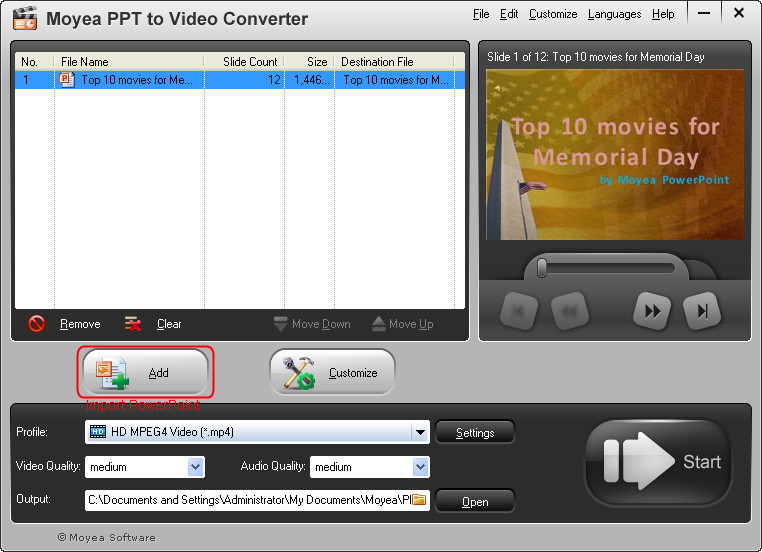
Step 1 Download, install and launch PPT to Video Converter. On the main interface, click Add button to import the presentation.
ppt

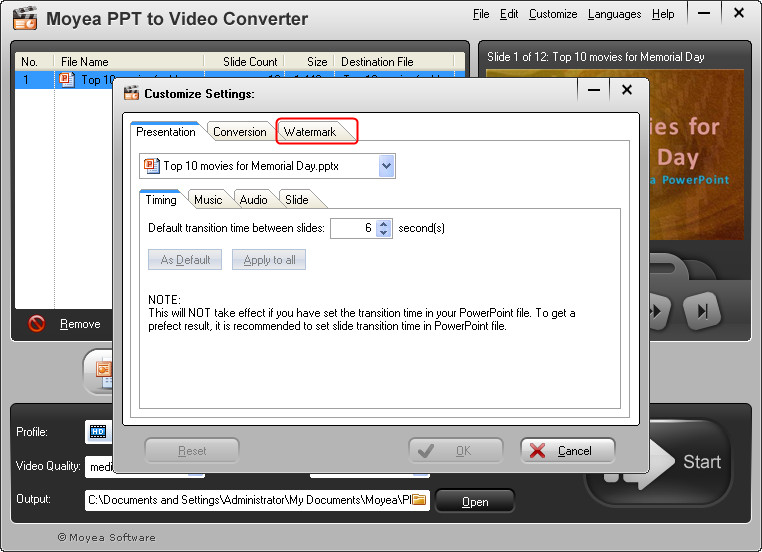
Step 2 Click Customize button, a new window named Customized settings pops up. Click Watermark tab. Another window called Logo & Video Layout appears.
customized settings/></a></div>
<span style=


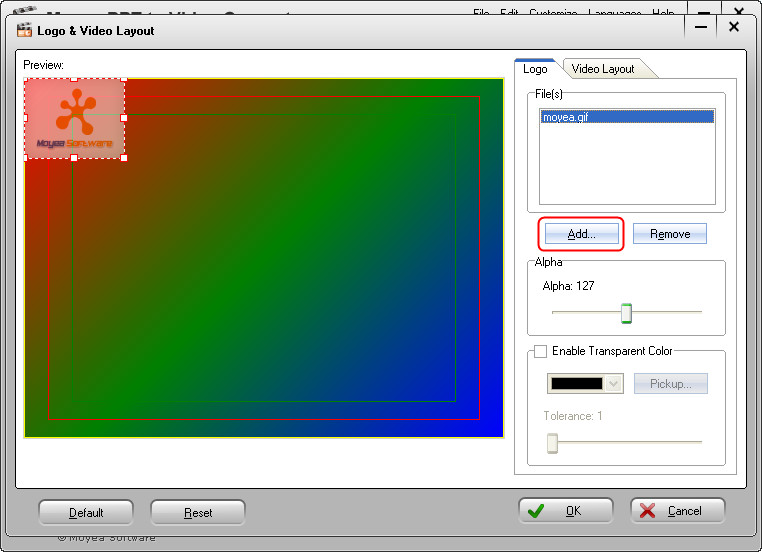
Step 3 On the Logo & Video Layout window, click Add button to add one or multiple pictures as watermarks from your computer. Position and size of the watermarks are editable by simply drag and drop on the left preview screen.
add watermark 001

Margin Size, Margin Fill and Color are also editable. If everything is OK,click the OK button to confirm and return to main interface.
add watermark 002

Step 4 Click Profile drop-down menu as well as Settings button to set the output video format. Make sure the converted video can be played on your device perfectly.
set output video

Step 5 Click the Start button to start the progress. When it's finished, you can play or share the video with watermark as you like.


Related article:

2 Methods to Add Watermark to Christmas PowerPoint

Wednesday, January 16, 2013

How Can I Share PowerPoint on Facebook?

How to upload PowerPoint to Facebook
How to post PowerPoint files on Facebook?
As all of us know, Facebook is one of the largest social networking service with more than 1 billion active users. People update their status with words, photos and videos at home, at work or on the go. Thought I don't have many friends or fans, I do love to share my ideas with PowerPoint on Facebook. Since PowerPoint files are unable to be posted on one's status, you may ask such an question: How can you post PowerPoint on Facebook? There are two ways to do the trick. Now let's take a look.

Method 1 Upload PowerPoint with slideshare
SlideShare is the world's largest community for sharing PowerPoint presentations, documents, PDFs, videos and webinars. Our first method is to upload PowerPoint to the website and then share it to Facebook.

Search "slideshare" on the Facebook search bar and enter the app. It would require your log-in information. Then click Visit Website and jump to the upload page.
slideshare app
Slideshare app
Click Upload button on slideshare.com, choose the PowerPoint presentation from your computer hard disk. Depends on the file size, usually it takes a couple of minutes for uploading.
upload PowerPoint to slideshare
Upload PowerPoint to slideshare
When it's done, you can play PowerPoint slideshow on the website or simply share it to SNS sites by clicking those SHARE icons.
publish PowerPoint on slideshare
Share PowerPoint to SNS
Now I successfully add a PowerPoint on Facebook. It's linked to slideshare.
post a link of PowerPoint
Post a link
Limitation of slideshare: 
  • As you see, I can post a link to the PowerPoint on my status. However the slideshow can not be shown on Facebook directly. You have no idea what I shared unless you click the link to watch the file.
  • Besides the lack of preview, animation effects lost as well during upload process.
Method 2 Convert PowerPoint to video and upload
How to post the PPT slideshow to Facebook and keep the animation effects at the same time? 
Well, we can convert the file to video formats and then upload. How in the world can we do that?
It depends on 2 situations.

If you're on PowerPoint 2007 or 2010, just convert the PowerPoint to .wmv format directly. Launch PowerPoint and import the file. Click File button on tool bar, then select Save As option, a dialog box will pop up. Choose Windows Media Video (*.wmv) as output format from the Safe as type drop-down menu. After conversion, you can upload the .wmv file to Facebook and then share it to others.
save as pdf
Save PowerPoint as .wmv
If you're using an older PowerPoint version, or you don't like .wmv format, Here's also a solution. What you need is a tool named Leawo Free PowerPoint to Video Converter. This software can convert PowerPoint to Facebook suitable .asf or .wmv video formats.

Download, install and launch the PowerPoint converter. Click Add button to import file. Batch conversion feature is available.
powerpoint to video converter
Input file
Now set the output video format. Click Profile button and select .asf or .wmv option from the drop-down menu. 
output format
Output video format setting
You can also click the Settings button for advanced settings, such as Quality, Bit rate, etc.
advanced settings
Advanced settings
Click the big Start button. The conversion process will be finished in a few minutes, depends on your computer configuration and file size.

The last step is to upload the converted file to your Facebook timeline. Enjoy!

Note: The free version of Leawo PowerPoint to Video converter can only output 2 video formats. For more format options, please try PPT to Facebook video converter Pro.


Related articles:

How to Embed Twitter in a PowerPoint File?

Upload PowerPoint Presentation to YouTube

Saturday, January 5, 2013

How to View PowerPoint on Nokia Lumia 920?

View PowerPoint on Nokia Lumia 920
"The world’s most innovative smartphone", that's how Nokia describes its new flagship --- Lumia 920. After abandoned Symbian and Meego, Nokia's newest smartphone with Windows Phone 8 brings us surprises: a 4.5 ''  display with 1280 * 768 pixels resolution, a 8.7 MP PureView rear camera and new wireless charging technology. Though sales of the Lumia 920 have been well behind the iPhone 5 and the Samsung Galaxy S3, this handset still has been sold out in quite a lot of countries since available in November 2012.

So what are the reasons for getting this phone? Besides entertainment, another basic and usual requirement is to view PowerPoint on Nokia Lumia 920. It would be ironic if a Windows Phone can't play Office files (Word, Excel, PowerPoint). Thanks to Microsoft, users can watch PowerPoint on Lumia 920 with its build-in mobile Office application.


The mobile version of Office has several features:
  • Basic editing, add comments on a Word file.
  • Edit, add formulas and move among pages on Excel spreadsheet.
  • Download PowerPoint documents and move or hide slides (without much editing capability).
From the above introduction we know some advantages of Office on Lumia 920. However, the mobile Office app can't do everything the same as the computer version. Moreover, it's weird and uncomfortable for people to tap on the screen to edit a PowerPoint slide on a keyboard-free device. Therefore, a more suitable way to enjoy playing PPT on Lumia 920 is to convert PowerPoint to video formats. The animated effects and the content would not be affected during conversion. Now let's have a look at the conversion process.

Step 1: Download, install and launch PPT to Lumia 920 video converter, a powerful tool that helps convert PowerPoint to Nokia Lumia 920 videos.

Step 2: On the user interface of converter, click "Add" button to import PowerPoint files (supports batch importing).

Step 3: Click the Profile drop-down menu and select a proper video format. For example, I choose "HD MPEG4 Video(*.mp4) as the output format.

Step 4: To make sure the converted PowerPoint can be played perfectly on Lumia 920, we need to click Settings button and enter Profile panel. Set the video size as “1280  * 768” and audio codec as “AAC“.

Step 5: Click the big black Start button to convert PPT files to MP4 videos for Lumia 920. When it's finished, transfer the videos to the phone and play them for free!

Tuesday, December 25, 2012

How to Upload PowerPoint Presentations to YouTube?

Upload PowerPoint presentations to YouTube
There's no doubt that YouTube is one of the most popular and busy websites on the Internet. According to Nielsen's newest statistics, there are average 132 million unique viewers visit YouTube each month in 2012, helps the website rank 1st place on the "U.S. Online Destinations for Video ranking" list.

There are so many, or should I say, too many videos on YouTube. Users upload birthday party footages, animations, music videos, movie trailers, advertisements, etc to the site. I also admire that some people may have a desire to upload pictures or PowerPoint slides to YouTube. Unfortunately, YouTube only supports specific formats for uploading, exclude .ppt format.


Here's the question: How can I easily publish PowerPoint files to YouTube, free preferly? Should I record the slideshows with a camcorder in front of the computer screen? Nope. Since only video formats can be uploaded, the solution is very obvious: convert PowerPoint to video formats. Here I collected 2 methods with different tools to solve the problem.


Method 1 Recording video with ezvid
Ezvid is a free video maker, screen recorder and slideshow maker for Windows. Users can instantly record the screen, desktop, browser, make gaming videos and record virtually anything on computer.

Step 1 Click here to Download and install ezvid
. We'll play the PowerPoint and record it with this screen recorder.

Step 2 Launch ezvid. Then click the capture screen icon. A baby blue color window appears and starts countdown. Now press F5 key to play the slideshow. As soon as the countdown finishes, ezvid begins recording the screen.
Screen recording icon
Countdown
Step 3 Ezvid doesn't support audio recording. You can record your own voice by clicking capture voice icon if necessary.


Step 4 The software can also make computer narration for the video. Make a text slide, click the synthesize speech icon, and ezvid instantly creates computer speech for the video.

Step 5 Click Stop to finish recording. Then fill in the information about the video and click upload to YouTube button to share this video on YouTube.


Disadvantages of ezvid screen recorder:
  • Time limitation: no more than 10 minutes
  • Original audio in PowerPoint file can not be recorded
  • Need to play the PowerPoint from beginning to end
Method 2 Convert PowerPoint to video
Here we'll introduce a better way to change the PowerPoint file into video format. There's a new function in PowerPoint 2010: Save a PowerPoint file as WMV format. Then convert the wmv file to any other YouTube supported formats and upload.

In this way, you may need another software: Video to Flash Converter. This FREE tool is able to convert all the popular video to flash video files (.flv) for video sharing site like YouTube.


Step 1 Save PowerPoint as .wmv format

Open the PowerPoint presentation. Click File button and select Save As Option. Then choose "Windows Movie Video" on the "Save as type" drop-down menu. It takes about 10 minutes to finish conversion of my 23-slide files.

Step 2 Download and install Moyea Video4Web Converter
Download Video to Flash converter and install it on computer. Launch the tool and you'll see its simple User Interface.

Step 3 Input video and set output file
Click File and select Add Video Files option from drop-down menu to import previous WMV file. Now you can preview the video by clicking play button on the right side of software. Set the output file as MP4 format in the Profile drop-down menu. Then click Setting button to enter into further settings.

Step 4 Advanced settings
On the Settings panel, select video codec as “H.264″ and audio codec as “AAC”. Click OK button to confirm.

Step 5 Convert and upload
Check Upload to YouTube box. Then click the big round button in the lower right corner to start process. After conversion, the video can be uploaded to YouTube channel automatically.

OK, the above contents are how I usually publish PowerPoint presentations to YouTube. Besides using free tools, there's actually an one-stop solution: convert PPT to Flash video directly. 

Tuesday, November 27, 2012

Large Screen with Good Performance, Enjoy Watching PowerPoint on Nexus 10

Google Nexus 10 tablet
It has been two weeks since Google launched its first large tablet – Nexus 10. This device was sold out in a few hours after available on Google Play, along with its little brother Nexus 4.

Display & OS
Nexus 10 is called "a beast of a device" by Phone Arena. Comes up with a 10.055'' display, it has the world's highest resolution: 2560 x 1600 pixels. Protected by Corning Gorilla Glass 2, the screen can efficiently avoid being scratched. As a member of Nexus devices, Nexus 10 runs newest Android 4.2 Jelly Bean. It’s promising to update OS versions by Google in the future.

Hardware & Camera
The Nexus 10 is powered by Samsung's new Dual-Core 1.7 GHz ARM Cortex-A15 processor and Quad-Core Mali-T604 GPU. This handset also has 2GB RAM, 16 GB or 32 GB built-in storage. It will not have an SD card slot. Moreover, this tablet has two cameras: a 5.0 MP rear one with auto focus and a 1.9 MP front facing one.

Office Working
What do you want to do with this large screen tablet? Watching HD movies, playing HD games and watching PowerPoint! As an Android based tablet, There are some office apps for users on Google Play, such as Kingsoft Office, Mobile Document Viewer, Quickoffice Pro, etc. These free or paid apps can help you view and even edit PowerPoint files on Nexus 10. 

However, compared with original Microsoft PowerPoint on PC, these mobile apps has some disadvantages. For example, device freezes when using apps, ads in the apps or even not working. Is there any method to replace them? Well, you can wait for the official Android version from Microsoft Office. Besides, you can convert the PowerPoint files to videos and watch them on tablets.

How can we convert PPT to videos? What you need is a PowerPoint to Nexus 10 video converter on your computer.  It's an all-in-one converter enables you to convert PowerPoint files to different video formats, such as .avi, .wmv,.mp4,.mov, etc. With a few clicks and some simple options, you can easily handle the process. After conversion, just plug the Nexus 10 in computer via USB cable and transfer video files to tablet.

Don't know how to do the conversion? Never mind. Here's a step-by-step video tutorial for your reference.


Related articles:

Monday, November 5, 2012

How to Watch PowerPoint on Nexus 4 Smartphone

Nexus 4
Nexus 4 is an upcoming smartphone that co-branded by Google and LG. As the 4th generation Nexus device, it runs the newest Android 4.2 Jelly Bean OS. Compared to Galaxy Nexus, the Nexus 4's hardware configurations has also upgraded: 4.7'' display, 1.5 GHz Quad-core processor, 2GB RAM, 8.0MP rear camera, wireless charging feature, etc.

This handset will be available since November 13 and priced at $299 for 16GB version. Do you want to get this budget smartphone? Well, I'm really attracted by the price and plan to purchase one next month. Once I get it, I can do whatever I want on the road: surf on the Internet, purchase apps on Google play, check my e-mails on Gmail, and of course, do my office job on the phone.


Do you know how to watch PowerPoint files on Android based smartphones? Not difficult to answer. There are some free/paid apps on Google play: Kingsoft Office, Quickoffice Pro, Documents To Go......However, these apps sometimes can not completely replace the function of PowerPoint on PC. Is there alternative way to solve the problem?


We can convert PowerPoint files to video format and transfer them to Nexus 4. What we need is a software called "PowerPoint to Nexus 4 video converter", a free download tool which is able to convert .ppt format to various of video formats(.mp4, .mov, .avi,etc). Here are the process of conversion.


Step 1: Input PowerPoint files.
Launch the Moyea PPT to Video Converter. You can see the main interface with simple guides of the software. Click the Add button and choose the PowerPoint files from your HDD. The converter supports batch conversion so that you're able to add multiple files at the same time. Files can be review on the screen.

There is a player on the upper right to play and preview PowerPoint files.


Step 2: Setup output video format.
Click the Profile drop down menu, you'll see a list of output video formats. Hundreds of options with different formats and resolutions are available. We choose "Android Mobile (*.mp4)" as the output format. Since the Nexus 4 is a new model, there's no default option for it. To make the video plays on the phone fluently, we need to setup its parameters.

Advanced settings
Click the Settings button, a new Profile window pops up. You're free to setup the parameters here, such as Video Codec, Quality, Video Size, etc. The resolution of Nexus is 768*1280, so the video size should be 1280*768 in horizon screen.


Step 3: Convert PowerPoint to Video.
Click the big Start button and wait for the conversion.
A new window will pop up and give you notices. Click OK button to continue.


Process starts. The conversion time depends on the file size, file format and your computer's speed.

When it is done, a new window pops up and shows you the results.

Check out the videos from the folder.Try to play it on computer.
Then transfer the videos to Nexus 4 smartphone and watch them any time, any where!


Related articles:

How to View PowerPoint on Google Nexus 7

2 Methods to View PowerPoint on Nexus 10

LinkWithin

Related Posts Plugin for WordPress, Blogger...