Last time I posted a simple tutorial about converting Word to PowerPoint. Today we'll do it contrary: converting PowerPoint to Word. You may be curious to know why people convert PPT to Word. In some circumstances, we can make printouts for our audience as well as make handouts for ourselves.
In Office 2010, the process of PowerPoint to Word conversion is shown below:
Step 1 Open a presentation file in PowerPoint, click File tab and choose Save & Send, then choose Create Handouts option.
Step 2 A new dialog box pops up. We can see there are 5 Options for converting PPT to Word.
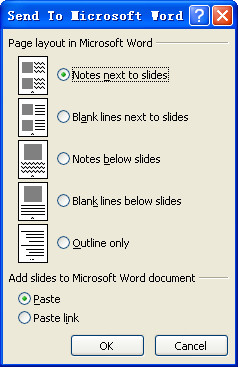
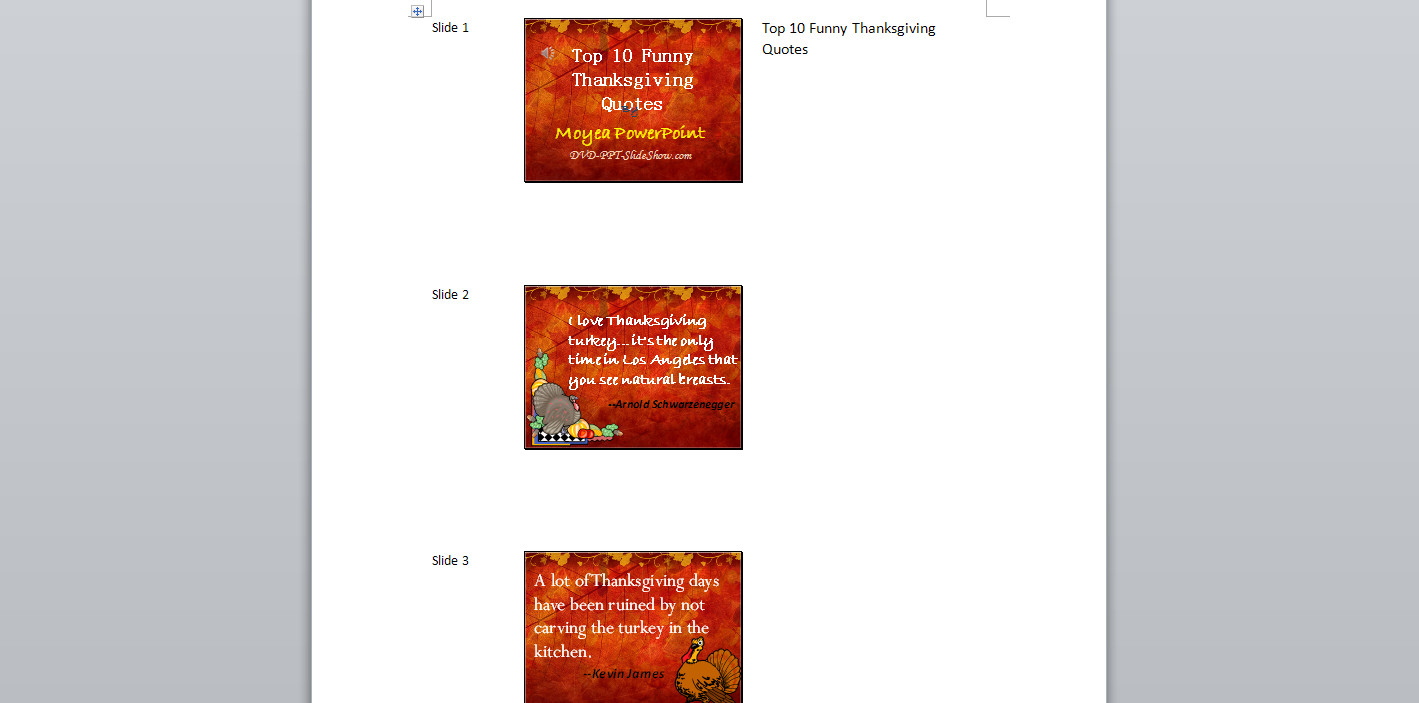
- Notes next to slides. This is the most widely used option. By selecting this, a miniature slide will be printed on the left side and speaker notes accompany the slide will be shown on the right. 3 slides will be shown on each page.
- Blank lines next to slides. If you choose this option, blank lines will be printed beside the slide for audience to make notes during presentation. 3 slides will be shown on each page.
- Notes below slides. This option is to show speaker notes below the slide, so that the presenter can read this “crib notes” while he speaks, and audience can have all the information about the presentation too. One slide will be shown on each page with little larger than a thumbnail size.
- Blank lines below slides. The 4th option when converting PowerPoint to Word, is to print blank lines below the slide for audience to make notes during presentation. Like the previous option, a larger slide will be shown per page.
- Outline only. The last option is to print an outline of all the text in the PowerPoint. No pictures are shown in the outline.
Step 3 Still in the “Send to Microsoft Word” dialog box, we still need to make a choice between Paste and Paste Link. So what’s the difference? If we choose Paste option, Office will create the handout in the style we have chosen. If we choose Paste Link, Office will do the same thing as well, but when you edit the PowerPoint file later, the changes will also be reflected in the Word document the next time it’s opened.
Step 4 Hit the OK button to start converting PowerPoint presentations to Word documents.
Question
I was working hard on a PowerPoint presentation, but the computer suddenly crashed before I could save my progress. I don't even remember when I saved the file last time. How can I recover the unsaved PowerPoint file? I use Office 2010.
Answer
This circumstance sometimes happens to PowerPoint users. Due to different problems like power cut or system crash, the progress loses before we save it. In Office 2010, there are 2 ways to restore unsaved PowerPoint depend on different situations.
To recover a previously saved PowerPoint file
To do the recovery, you have to make sure that you have AutoRecover enabled; otherwise the following process cannot continue.
Step 1 Open the PowerPoint file, click File tab and choose Options, a new window pops up. Click the Save tab, within the tab under the Save Presentations section at the top of the window, you can see some different AutoRecover options. I hope you have these 2 options checked and enabled.
Step 2 In the same window, you can see where PowerPoint 2010 saves the AutoRecover files on your computer.
Step 3 When you know where the AutoRecover file is, just find it out. Go to your local disk (C: drive) and follow the folder structure. If the folders are hidden, please feel free to read this guide to unhide them in Windows XP or Windows 7. Look for a folder that contains the name of the PowerPoint file, open it and find the latest saved version of your file.
To recover a new PowerPoint file
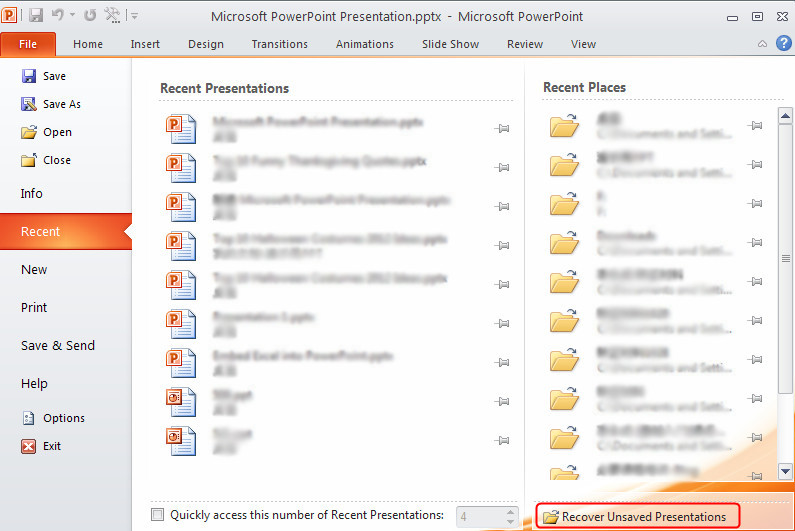
If you want to retrieve a new PowerPoint file that you never saved before, it would be different and easier to get the file back. In PowerPoint 2010, click File tab and choose Recent option. At the bottom of the window, you can see a Recover Unsaved Presentations. Click this option and a new folder pops up with PowerPoint files that were never saved when the files were closed.
Note: The files in the folder are temporary. They'll be deleted if you don't retrieve them promptly.
More PowerPoint tips:
How to Password Protect a PowerPoint 2010 Presentation
Sometimes we may need to convert PPT files to PDF format. For example, when you share the file to others but don’t like them copy or change the original content, you can send a PDF version instead. On Windows based computers, we can easily change PowerPoint to PDF by using Office’s built-in feature or a FREE PDF converter. If you’re on a Macintosh, do you understand how to do the conversion?
It’s quite simple for users to change PowerPoint to PDF on Mac Mountain Lion. Here’s the process.
Step 1 Open a PowerPoint file with PowerPoint 2008/2011 on your Mac.
Step 2 Click File and choose Print option.
Step 3 At the bottom of the Print dialogue, click the PDF button and then choose Save as PDF option.
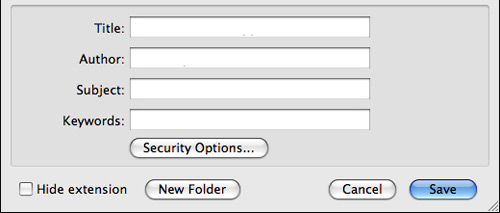
Step 4 A new window pops up. Give the file a name and input additional information like Author, Subject or Keywords as you like.
Step 5 You can also click the Security Options button to set passwords for file alteration.
Step 6 Everything is ready. Now hit the OK button to save PowerPoint to PDF on Mac.
You may also like:
 |
| HTC First |
HTC First is an Android smartphone introduced on April 4. What makes it unique is the pre-installation of Facebook Home, a deep customized app instead of prioritizing apps like other phone interfaces. By doing this, the app can provide a more personal experience to Facebook users. The HTC First smartphone with Facebook Home optimization will be sold via AT&T on April 12, priced at $99.99. Moreover, the Facebook Home app will also be available for specific phone models, like HTC One X, One X+ and the upcoming HTC One, as well as Samsung’s Galaxy S3, Galaxy Note II and new Galaxy S4.
Specs
There’s not much to say about HTC First’s hardware. It has a 4.3-inch display with 720 x 1280 pixels of resolution and 341ppi. Powered by a 1.4 GHz dual-core processor, the phone has 1 GB of RAM and 16 GB of built-in storage. Unfortunately the storage is non-expandable. For cameras, the HTC First has a 5MP rear one and a 1.2MP front one respectively, which are good enough for shooting daily life photos/videos and sharing them on Facebook.
Highlights
Two new features are brought by the Facebook Home app: Cover Feed and Chat Heads.
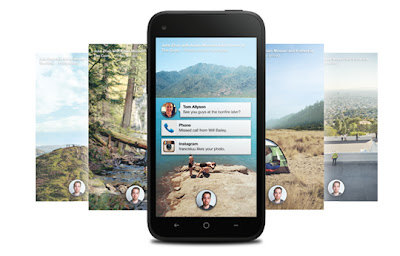
Cover Feed is what users see when they turn on the phone. It not only shows time and background but also displays photos and descriptions from Facebook friends. Updated statuses are shown on the upper side, so that users can easily scroll the screen to view photos, like them or leave comments.
 |
| Cover Feed |
Chat Heads is a communication interface. When users receive a message, no matter if it’s a SMS or Facebook notification, the sender’s Facebook profile picture can be shown in an icon on the screen. Users can chat with the sender by touching the icon.
 |
| Chat Heads |
View PowerPoint on HTC First
As we mentioned above, the HTC First is a deep customized smartphone. Facebook lovers may use it to keep themselves “online forever”. To think further, this phone is not only designed for entertainment, it can do something else. Let’s say, how to play PowerPoint on HTC First?
As an Android device, there are several ways to show PowerPoint on HTC First. For instance, we can convert PPT to PDF, images or use an Android PowerPoint app. However, by using the methods above, some PowerPoint elements and effects like transitions, background music and animations are no longer unavailable. To display PPT on HTC First perfectly, users can convert PowerPoint to HTC First suitable videos, so that they can watch these videos on the phone with PowerPoint effects and elements remained.
Related articles:
BlackBerry Q10, one of the new models from BlackBerry Company, is reported to release in the US market in May or June, after the step of model Z10. This smartphone is a combination of BB’s traditional design and customers’ new trend, which is equipped with a touchscreen as well as a QWERTY keyboard. The company hopes to grab market share with the help of Q10 and Z10.
Specs
The BlackBerry Q10 is powered by a 1.5 GHz dual-core processor and runs brand new BlackBerry 10 OS. Comes up with a 3.1-inch Super AMOLED touchscreen, the screen’s pixel resolution is 720 x 720 and pixel density is 330 ppi. Moreover, the BlackBerry Q10 has 2GB of RAM and 16GB of built-in storage. A microSD card slot is featured for up to 64 GB of additional space. The rear camera of BlackBerry Q10 has 8.0 MP and supports 1080p HD video shooting. The phone has a 2.0 MP front-facing, too.
Highlights
- QWERTY keyboard. As mentioned above, you can handle the phone conveniently by touching its display or typing on the keyboard.
- BlackBerry Balance. Switch the mode between Life and Work with a simply gesture.
- BlackBerry Remember. Group your interests, ideas and projects in one handy app.
- BlackBerry Hub. Peek into the BlackBerry Hub from any app to see your messages and social content.
View PowerPoint on BlackBerry Q10
The BlackBerry devices are famous for their high security. As a consequence, they are widely used by businessmen and government agencies. For businessman, it’s quite usually for them to watch and even edit Office documents on BlackBerry Q10. Thanks to the built-in Documents To Go app, users can read, create and edit Word and Excel documents, and show PowerPoint on BlackBerry Q10.
However, when playing PowerPoint on BlackBerry Q10, its background music, animations and transitions can’t be heard or shown. To solve this problem, users can convert PowerPoint to BlackBerry Q10 video, so that they can enjoy PowerPoint on the phone flawlessly. To do the conversion, a professional program named PowerPoint to BlackBerry Q10 video converter is needed.
Step 1 Download, install and launch PowerPoint to BlackBerry Q10 video converter. Open the program and click Add button to input the PowerPoint file(s).
Step 2 To make the PowerPoint playable on BlackBerry Q10, set the output video format as mp4 in the Profile drop-down menu. Then click Settings button to set parameters of the mp4 video. After that, click Start button to begin the conversion. When it’s done, users are able to play PowerPoint on BlackBerry Q10 perfectly!
Related articles:
How to Play PowerPoint on BlackBerry Z10
First Touchscreen Smartphones from RIM, the BlackBerry Z10 & Q10
Sometimes you may need to change a colorful PowerPoint file in black and white. As we know the combination of black and white colors usually gives people the sense of history, nostalgia, horror or serious. There are 2 methods to make a black and white style PowerPoint in Office 2010.
Method 1 Use sample template
Open a file in PowerPoint 2010. Click File tab and select New option, then choose Sample templates icon. Now you can see some built-in templates and themes. To make a new black and white PowerPoint, here we double click to select Classic Photo Album.
A new PowerPoint presentation pops up as below. It's easy to replace pictures and texts with your own ones.
Method 2 View an existing PowerPoint in black & white
If you have already finished a colored PowerPoint and want to view it in black and white, do you know how?
Open your file in PowerPoint 2010. Click the View tab, then click Black and White option from the Color/Grayscale group.
Now your PowerPoint turns into black and white. You can also click the pics and texts on the slide to change them into different color effects.
Note: The black and white effect in method 2 can't be saved or view in slideshow mode. As a consequence, it's better to use method 1 to build a whole new black and white PowerPoint.
More PowerPoint tips:
How to Set a Background Picture in PowerPoint 2010
4 Methods to Reduce PowerPoint File Size
How to Encrypt PowerPoint Files in PowerPoint 2010?
Microsoft's Excel and PowerPoint are both frequently-used tools for office working. Sometimes we need to show the Excel spreadsheet and PowerPoint slideshow at the same time. As a consequence, it could be very convenient to simply embed Excel into PowerPoint. The process are shown below.
Step 1 Open a PowerPoint file. On the slide that you want to embed a spreadsheet, click Insert tab and choose Object option.
Step 2 On the Insert Object dialog box, choose the Create from File button, then click on Browse. In the menu box that pops up, find the location of your Excel file. Double-click on the Excel file you want to embed into PowerPoint, then hit the OK button.
Step 3 Now we successfully embed an Excel sheet into PPT. We can resize the Excel sheet, drag and drop to move it to the desired location. It's also easy to edit contents by double-clicking on the sheet.
More PowerPoint tips:
Embed YouTube Video to PowerPoint 2010
How to Embed Twitter in a PowerPoint File?
How to Play Flash Animations on PowerPoint 2010
A couple of hours ago, I saw a tweet on twitter. Somebody asked, "How do you embed twitter into PPT?" To tell you the truth, I've never thought of such a question. Why do people want to embed tweets in PowerPoint? That's weird.
Though it's rare to embed twitter in PPT, there's a way to do the trick. Here's the steps.
Step 1 Download the PowerPoint add-on from SAP Web 2.0 and save it on your computer. It should be a file named powerpoint_twitter_tools.ppt, a presentation with the SAP Web 2.0 Twitter tools embedded.
Step 2 Double-click to open the PPT file. The click on the 4th slide of the presentation.
Step 3 Press Shift+F5 to start the presentation. Type the search term you want to return in the lower left-hand corner of the screen, then click Refresh. You'll see the most recent tweets with that term.
For example, I entered "St. Patrick's Day", and I got this:
Step 4 Copy and paste this slide into your PowerPoint presentation. Done. This is how we normally embed twitter in PowerPoint.
Notes:
- You must have Internet access when you're giving the presentation for the twitter feed to appear.
- Enter the search term before you give your presentation live so it will refresh automatically.
More PowerPoint tips:
How to Upload PowerPoint Presentation to Facebook
How to Share PowerPoint on YouTube
Question
I've just finished a PowerPoint file, but it's almost 20 MB in size! It's too large to send by e-mail. How on earth can I reduce my PowerPoint file size?
Answer
There are several methods to reduce PPT size in PowerPoint 2010. Some of them are available for all PowerPoint versions. Now let's take a look.
Method 1 Save PowerPoint with a new file name
It's said in some cases, this method can reduce the size of the file by up to 50%.
1) Click File and choose Save As in the tool bar.
2) Type a new file name, then click Save.
Method 2 Compress PowerPoint pictures
You can make the PowerPoint file size smaller by reducing the color format of the pictures (compressing).
1) Double-click the picture or pictures that you want to compress.
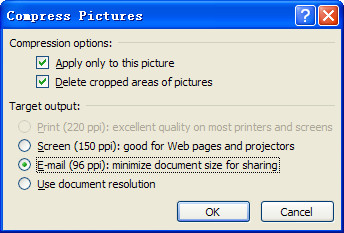
2) Under Picture Tools, on the Format tab, in the Adjust group, choose Compress Pictures.
3) To compress the selected pictures only and not all of the pictures in the PowerPoint, select the Apply only to this picture check box.
4) Under Target Output, click to choose the resolution that you want.
Method 3 Turn off the activated review feature (PowerPoint 2007 only)
1) On the Tools menu, click Options and choose Advanced E-mail tab
2) Clear the check box next to “add properties to attachments to enable reply with changes”.
Method 4 Break down a large PowerPoint file into several smaller files
If your PowerPoint file is too large, then why not split it into 2 or more smaller files instead? Create a hyperlink from the last slide in File 1 to the first slide in File 2 and then close off File 1. This method is available for PowerPoint 2007/2010.
1) Add a new slide to the end of the first PowerPoint file.
2) On the Home tab, click on the rectangle tool in the Drawing section.
3) Draw a rectangle large enough to cover the whole slide.
4) Right click on the rectangle and choose Format Shape... from the menu.
5) In the Format Shape dialog box, select Fill -> Solid Fill. Choose black from the Color drop down selections and then close the dialog box.
6) Right click on the rectangle again and choose Hyperlink....
7) In the Link to: section on the left side of the dialog box, choose Existing File or Web Page.
8) Locate the second PowerPoint file previously saved on this computer. Click OK to confirm.
Related PowerPoint tips:
How to reduce the size of your PowerPoint file?
How to compress image files/pictures in PowerPoint?
Thanks to mobile technologies, smartphones and tablets now become parts of our daily life. We can't even imagine a future day without these gadgets. It sounds like people have abused these products for entertainments and become slaves to them.
No, that's not the case. Besides surfing Internet, playing games or watching movies, some people, especially businessmen and students, usually use mobile devices to watch PowerPoint files. What do they do that? For iOS devices, they have Keynote. Then how about Android based devices? How do people play PowerPoint on Android? In my opinion, there should be at least 4 methods.
Method 1: Office apps
Applications are software for mobile devices. On computers, we have Microsoft Office, on mobile devices, we have Office apps as well. The most popular Android Office apps include Documents To Go, Kingsoft Office, Quickoffice and so on. All of these tools, free or paid, can be found on Google Play. Users can easily download and install them on their devices.
It's worth pointing out the limitations of watching PowerPoint on Android with these apps. A PowerPoint presentation normally contains elements like fonts, animations, transitions, inserted video clips and background music. When you play PPT with mobile Office apps, these elements can't be shown.
Method 2: View PowerPoint online
Large screen Android devices has excellent performances on web browsing. As a consequence, we can upload PowerPoint to some file-sharing websites, such as Slideshare and SlideBoom. And we could view PowerPoint online with Android.
Method 3: Convert PowerPoint to PDF format
Converting PPT to PDF is also a not-bad idea when you want to send the file to others. The format could protect it from being unauthorized editing. Moreover, it's easy to find a free way to save PowerPoint to PDF.
Method 4: Convert PowerPoint to video
Are you looking for a solution to show PowerPoint on Android without losing effects? Well, here's the way. By using a PowerPoint to Android converter, one can easily change PPT to video with animation effects remained. With the help of high-performance processor and HD screen, it could be an enjoyment to display PowerPoint on Android devices!
More PowerPoint tips:
5 Methods to View PowerPoint on Any Android Devices
5 Useful Apps For Viewing PowerPoint on iOS Devices
3 Free Methods to Convert PowerPoint to PDF
Samsung Galaxy Note 8.0, a new eight-inch Galaxy tablet was introduced during MWC 2013. This one is a smaller version of the Galaxy Note 10.1, with an uprated specification and improved built-in stylus.
Specifications
Compared with Note 10.1's 1.4 GHz processor, the new Note 8.0 is powered by a faster 1.6 GHz quad-core model. The tablet is 335g in weight, which is lighter than 597g of Note 10.1, makes it more convenient to carry around.
As the name mentioned, the Note 8.0 comes up with a 8.0-inch TFT display, featuring 1280 * 800 pixels resolution and 189ppi.
As to other specs, the gadget has 2GB of RAM with 16/32GB of ROM. It also provides a microSD slot, which is able to expand the memory up to 64GB. The tablet has a 5MP rear camera with AF (lacks flash) and a 1.3MP front-facing camera. A massive 4600 mAh battery is also equipped. The tablet runs Android 4.1 Jelly Bean, BTW.
Highlights
Same as the Note 10.1, this Note 8.0 is S-Pen stylus equipped. Thanks to the Android 4.1 OS, several stylus -specific functions are available: pressure-sensitivity and windows that pop up over whatever app you're currently using to help you take a quick note.
Multiscreen is another highlight of the Note 8.0. users can launch two apps at the same time and make them sit side-by-side on the screen. Only 6 apps support Multiscreen function on the previous Note 10.1, but now the amount has increased to 20 for the Note 8.0. This is a meaningful improvement since people would love to deal with different tasks at the same time on a tablet.
Watch PowerPoint on Samsung Galaxy Note 8.0
As an Android based tablet, there are several ways to play PowerPoint on Galaxy Note 8.0. Although users can download some Office apps from Google Play, such as Kingsoft Office, Documents To Go, etc. But the PowerPoint effects (animations, transitions) can't be shown on these mobile apps.
In my opinion, an effective way to show PowerPoint on Galaxy Note 8.0 is to convert PPT to suitable video format. By using a free-download PowerPoint to video converter, users can easily watch the converted videos on the Note 8.0 with PPT effects remained.
Related articles:
View PowerPoint on Samsung Galaxy Note 10.1
Large Screen with Good Performance, Enjoy Watching PowerPoint on Nexus 10
Once upon a time, my friend asked me such a question,"I've just finished my PowerPoint presentation and am ready to send it to my business partner. Do you have any ideas to avoid the PowerPoint being modified by others?" Well, I'll ask you the same question today, do you know how to encrypt PowerPoint presentations?
As a matter of fact, there are at least 2 ways to do the encryption. By using one of those, you can simply protect your PowerPoint files from modification. Now I'll show you these methods one by one.
Note: I'm on Office 2010, therefore I'm not 100% sure whether the following ways work on the older PowerPoint versions.
Method 1: Encrypt PPT with passwords
Open the PowerPoint file with PowerPoint 2010. Click File button in the toolbar, select Save As option.
A new Save As window pops up, click the Tools button below and choose General Options from the drop-down menu.
In the General Options window, you can set passwords for the PowerPoint file. Password to open is used for someone to view the file only, Password to modify is used for someone to edit the file.
Hit OK button to confirm. Then the system requires you to re-enter the passwords. After the steps above, your PowerPoint file is encrypted successfully! From now on, people who attempt to open or edit this file have to enter the right password respectively.
Method 2: Save PowerPoint as PDF format
PDF files are usually difficult to be edited (unless you have a professional PDF Editor). With the build-in function of PowerPoint 2010, we can convert PowerPoint files to PDF directly.
Open the PowerPoint document, click File button and choose Save As option. In the pop-up window, select PDF (*.pdf) from the Save as type drop-down menu.
Note: If you're using an older version of PowerPoint (2003 and before), you're unable to save PPT as PDF directly. Try to use this Free PPT to PDF converter instead.
More PowerPoint guides:
How to Add Watermark on Your PowerPoint Presentation?
How to embed YouTube video into PowerPoint 2010?
How to Play Flash Animations on PowerPoint 2010
This is one of the frequently asked questions for PowerPoint: How to play a sound across multiple slides in PowerPoint? It's easy to be solved with the guide. On the contrary, some PowerPoint users may want to mute video clip while the presentation is playing. Then how on earth to do this? Actually there are at least 2 ways to mute sounds in a presentation. Let's take a look and learn.
Method 1 Mute directly in PowerPoint
Open your PowerPoint file with Microsoft PowerPoint. Click Video button in the toolbar, select Video from File to insert a video into the slide.
Click Video Tools and select the Playback tab. Then Click the Volume button and check Mute option. Of course, you can simply click the volume icon in bottom right corner of the video screen.
Note: You can only mute one object (video clip or audio) per time with this method. If you have lots of objects inserted to the presentation, the following way may be a better solution.
Method 2 Convert PowerPoint to video and mute
Besides the first method, we can also convert the whole presentation to a video format with sound muted. To start the process, we may install Moyea PPT to Video Converter, a free download program that enables user to convert PowerPoint to different video formats with transitions, animations, audios and videos remained. By following the 4 steps marked below, you can do the conversion simply.
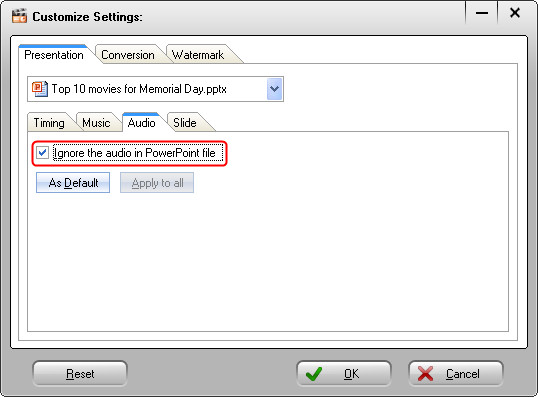
Before step 4, we can use a function to mute audio in PowerPoint with this software. On the user interface, click Customize button to enter the Customized Settings window. In the Presentation tab, choose Audio tab and then check the Ignore the audio in PowerPoint file box.
Once you check the box above, all inserted objects in the PowerPoint file could be sound muted. You can also convert multiple PPT files to videos in a batch.